SEATPLAN meeting planning
Precise plans for sensitive meetings.
SEATPLAN prepares the seating, agenda, catering, travel, deadlines and budget, and the printed plan book for board sessions, leadership offsites and privileged briefings, and controls how every copy is distributed.
Access is by invitation. How accounts are created

- Eight table shapesRound, U, T, boat, classroom and more, seats numbered clockwise
- One copy per recipientEach name stamped under the watermark and in every footer
- AES-256 passphrasesOn every PDF in an export, and never stored
- Row-level securityEnforced by Postgres, not only by application code
How it works
From invitation to printed plan, in one place.
SEATPLAN follows the order a planner already works in, and keeps the sensitive details under control at each step.
-
Start from an invite
Drop an Outlook, Google or Apple invite, pick an event from your Outlook calendar, import a workbook, or follow the guided setup. Files are read in your browser.
-
Seat everyone
Arrange the tables, then drag, swap or seat people from the keyboard. Remote guests and dial-in details stay with their table.
-
Plan meals, travel and costs
Attach menus to agenda slots and record dietary needs with a severity. Record each arrival and departure, build the airport runs, and track deadlines, the budget and vendors' invoices.
-
Produce and run the day
Export the meeting PDF, a plan book, a catering pack or a transport manifest, stamped per recipient and locked with a passphrase when needed. Log what happens on the day.
Workspace
Every meeting you can open, in one list.
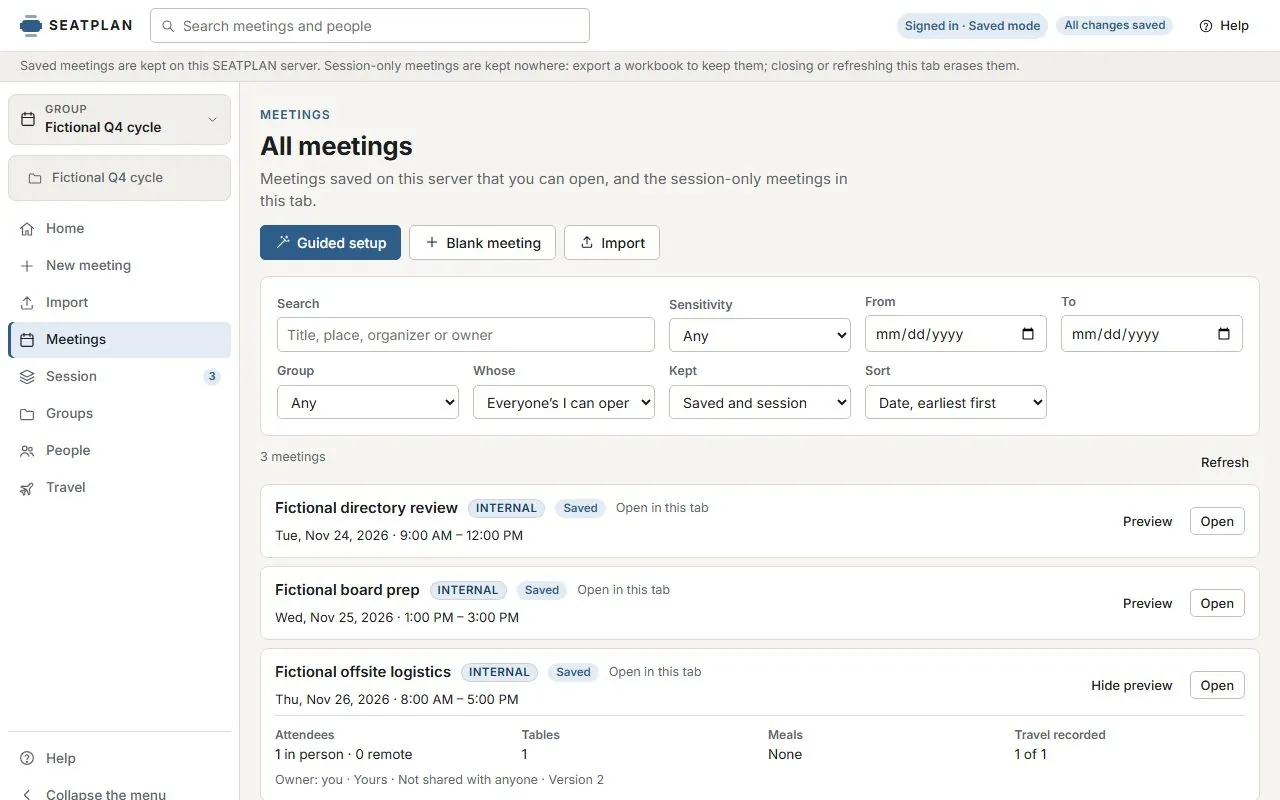
The menu on the left holds the meeting or group you are working on, with its sections beneath it. The Meetings page lists saved meetings and this tab's session-only meetings together.
- Choose a meeting or group from the top of the menu: recent items, saved meetings, this tab's meetings and groups.
- Filter by sensitivity, date, group, owner and where a meeting is kept; sort by date, title or last change.
- A preview shows attendees, tables, meal choices, travel recorded, the owner and the sharing before you open anything.
- Search in the top bar finds meetings by title, place or organizer, and people for the roles that can see the directory.
In saved mode, Owners and Admins also have User management, Settings and the Audit log. Settings hold the organisation's name and logo and the defaults new meetings start from; existing meetings keep their own.
Guided setup
A new meeting, one step at a time.
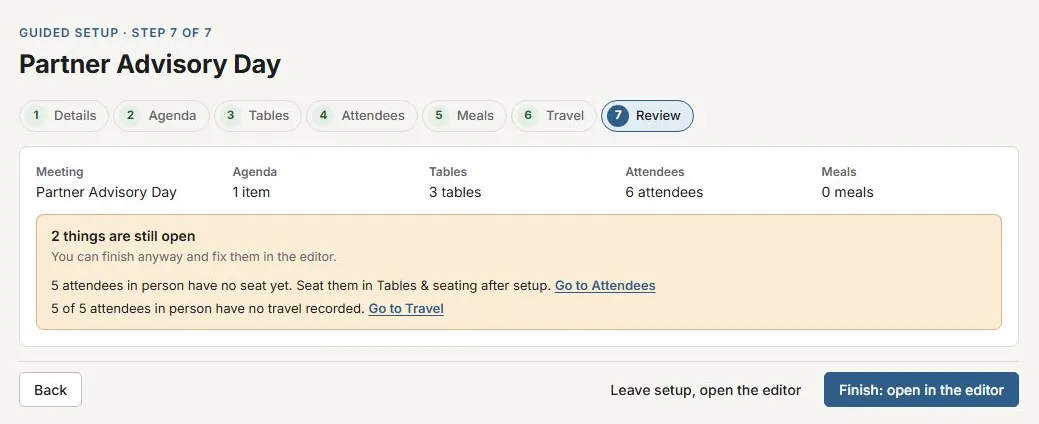
Guided setup takes a meeting through the order it is usually planned in: details, agenda, tables, attendees, meals and travel, then a review.
- Type attendees one at a time, paste a list from Excel or an email, mark who joins remotely, or add people from the directory in saved mode.
- Any step can be skipped and completed later in the editor.
- The review lists what is still open: a missing title or date, too few seats, people without a seat, meals without choices, attendees without travel. Each item links to where it is fixed, and none of them stops you finishing.
- Finish opens the meeting in the editor. In saved mode, people who can save meetings can save it to the server in the same step.
Seating & tables
A seating plan that matches the room.
Eight table shapes, from boardroom rectangles to U-shapes and classroom rows. Seats are numbered clockwise from the top left, the way the printed plan reads.
- Drag a chair to move someone, or drop it on another person to swap them. The chair snaps to the nearest seat.
- Seat people entirely from the keyboard, or work from the Unassigned tray and paste a list straight from Excel.
- Remote guests and dial-in details belong to their table and print alongside it.
- Nobody is deleted by changing a table. Anyone displaced returns to the tray, with a message saying who moved.
Outlook & Microsoft 365
Start from the invitation you already sent.
Drop an invite from Outlook, Google or Apple and SEATPLAN drafts the meeting: title, time and time zone, location, attendees and dial-in. The file is read in the browser and nothing is uploaded.
- Reads .ics, .eml and .msg files, including recurring series and their exceptions.
- Declined attendees, rooms and resources are left out, each with the reason shown for review.
- Update from a newer invite shows what changed as a checklist. Nothing applies until you confirm, and nobody loses their seat.
- With Microsoft 365 connected, invited users sign in with their work account, planners pick meetings from their Outlook calendar, and changes made in Outlook wait for review.
- Files.ics.eml.msg
- TimeDate, start and end in the right time zone, from IANA, Windows or Outlook names
- PeopleRequired and optional attendees, with declines, rooms and resources set aside
- Dial-inTeams, Zoom, Webex and Meet links, phone numbers and conference IDs
- SeriesChoose the occurrence; the next one from today is selected for you
- ChangesA diff against the meeting, applied only when you confirm
Meals & dietary
Every dietary need, at the right seat.
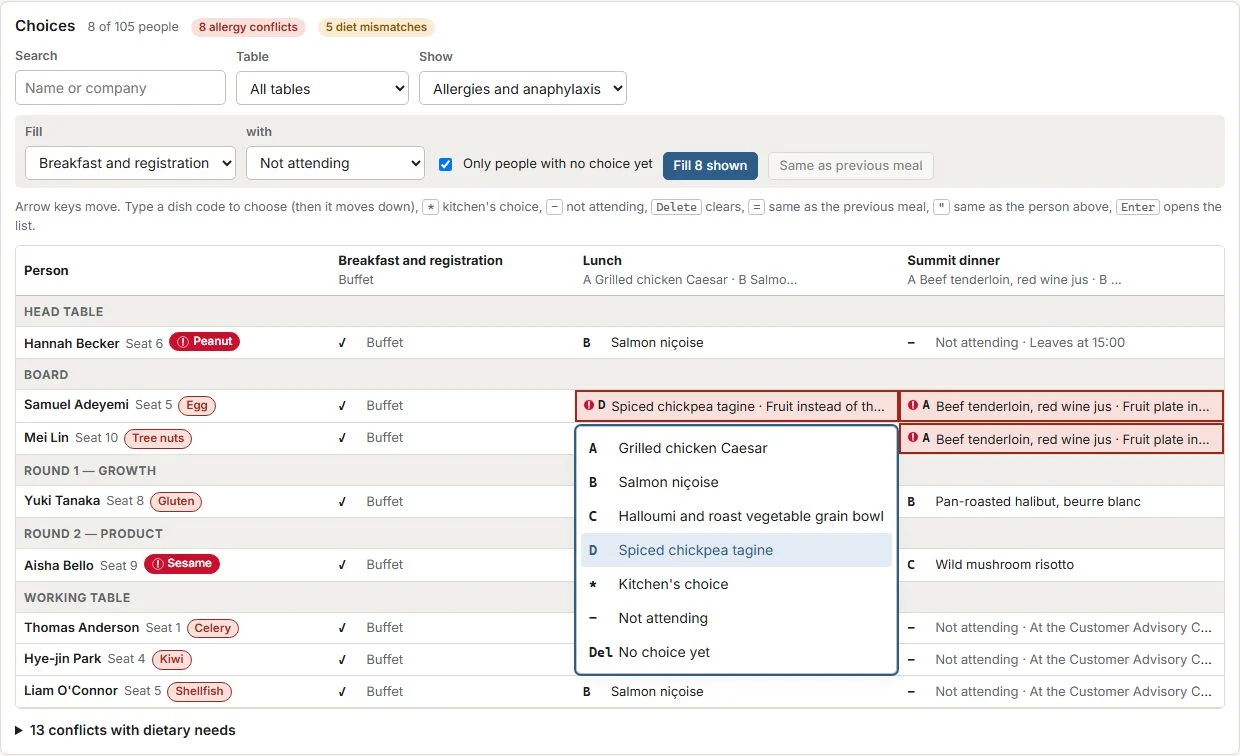
Turn any agenda item into a meal, set the menu with allergens and diet tags, and record each person's needs with a severity, from a preference to anaphylaxis.
- A keyboard-first choices grid for hundreds of attendees across several meals.
- Conflicts are flagged when a dish contains a declared allergen or does not meet a diet.
- Chairs carry a dietary badge that differs by shape as well as colour.
- A catering pack with counts by dish and by table, a server's chart and place cards.
Dietary details are printed only when you choose to include them. A per-attendee copy shows each recipient their own needs and no one else's.
Attendee directory
One profile per person, copied into each meeting.
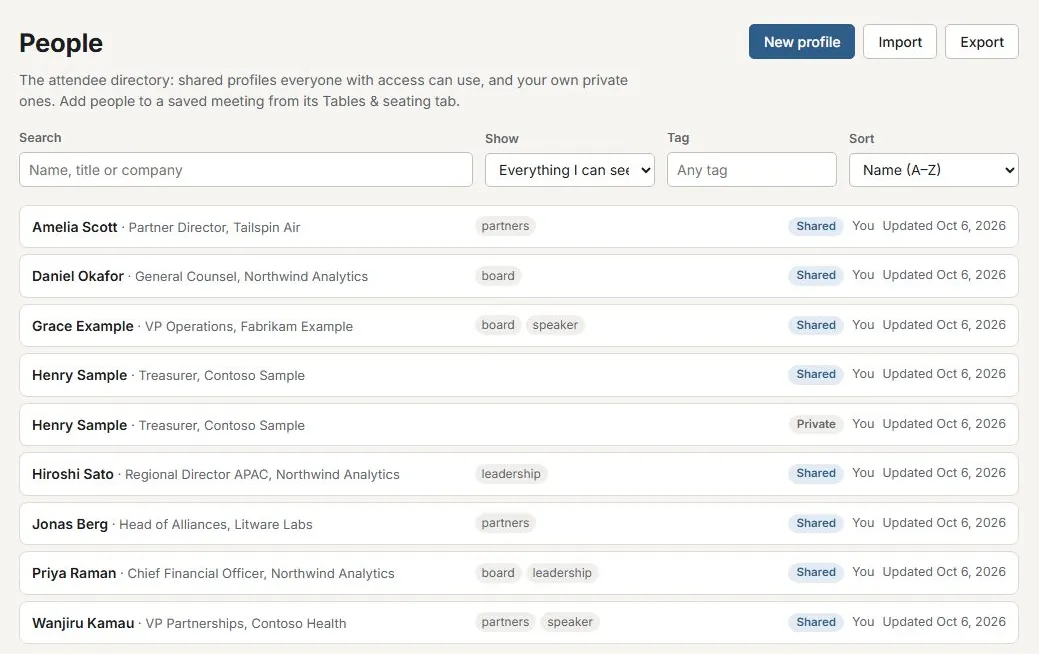
In saved mode, SEATPLAN keeps a directory of the people who attend: shared profiles everyone with access can use, and each planner's private ones. A profile holds contact details, an assistant, meal and travel preferences, accessibility needs, internal notes and tags.
- Add from directory copies a person into a meeting and links the copy to that version of the profile. The meeting keeps its own values, so an earlier meeting still shows what was true at the time.
- When a profile changes, the meeting shows Profile updated: review changes, field by field, and applies only the fields you choose. A change made in the meeting can be sent back to the profile.
- Each profile's History lists the saved meetings it was added to, with the seat, meals and travel, as far as you are allowed to see them.
- Travel preferences cover home city and airports, carriers, seat, loyalty numbers, ground transport and hotels. Loyalty numbers and internal notes are never printed.
- Import and export profiles as a workbook or CSV, up to 5,000 profiles in a file.
Deleting a profile erases it from the live database. Meetings that used it keep their own copy of the details, and backups keep it only until they expire.
Travel
Arrivals and departures, checked against the agenda.
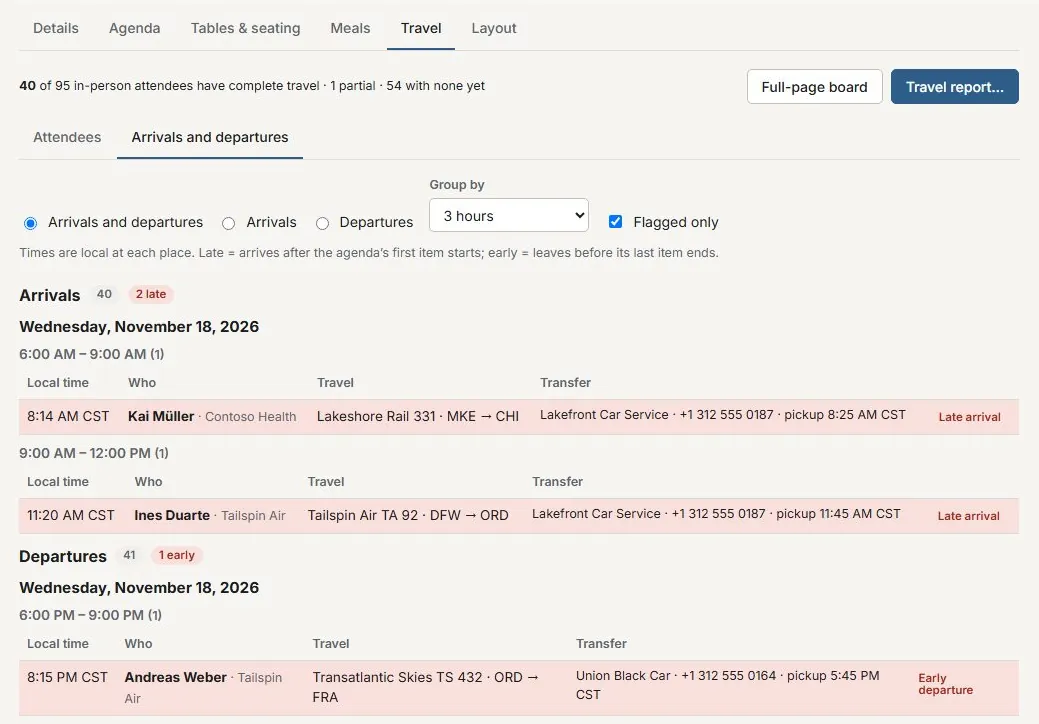
Record each attendee's journey in and out: up to six segments each way by air, rail, road or ferry, with connections, ground transfers and the hotel stay. Times are typed as printed on the ticket, in each place's own time zone, and are never converted.
- The arrivals and departures board groups everyone by local date and a time window of one to six hours.
- Late marks anyone arriving after the agenda's first item starts, and early anyone leaving before its last item ends.
- Transfer manifests list each pickup with its place, provider, riders and their flights.
- Open the board full page for one meeting, a chosen set of meetings or a group.
- Travel works in session-only meetings too: the exported workbook carries it.
Travel report
A travel report, and each attendee's own travel.
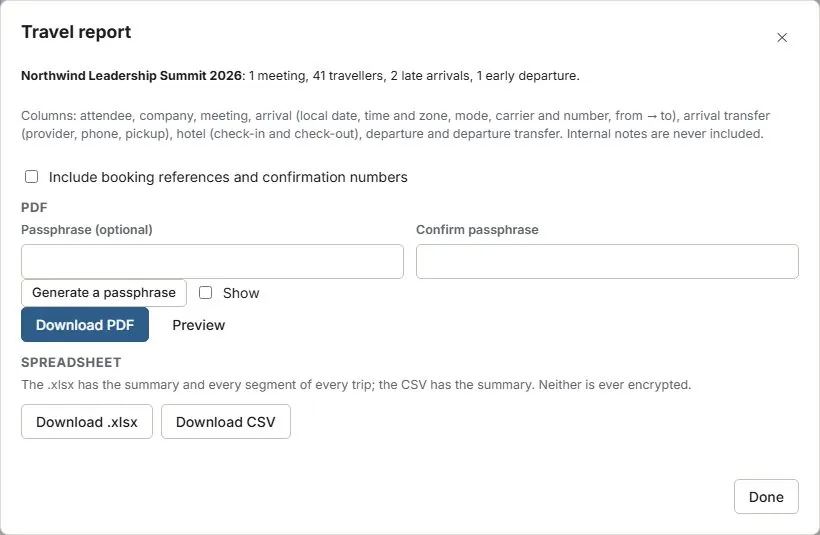
Produce a landscape PDF, or an Excel workbook and a CSV, for a meeting, a chosen set or a group. It gives every attendee's arrival and departure: date, time and zone, mode, carrier and number, route, transfer and pickup, and hotel, with the late and early flags.
- The PDF's summary carries the highest sensitivity in the report, each meeting keeps its own banner, and the watermark and passphrase follow the data policy.
- Booking references and confirmation numbers are left out unless you choose to include them, and then the PDF requires a strong passphrase.
- Per-attendee copies end with a Your travel page: the recipient's own journey, without references or notes. The meeting PDF never prints travel.
- The PDF needs the Download PDFs permission and the spreadsheets need Download workbook. In saved mode, each report is recorded in the audit log.
Internal notes are never included in a report or a copy. In saved mode, travel and internal notes are encrypted at rest.
Checklist & deadlines
What has to happen, and the dates that cost money.
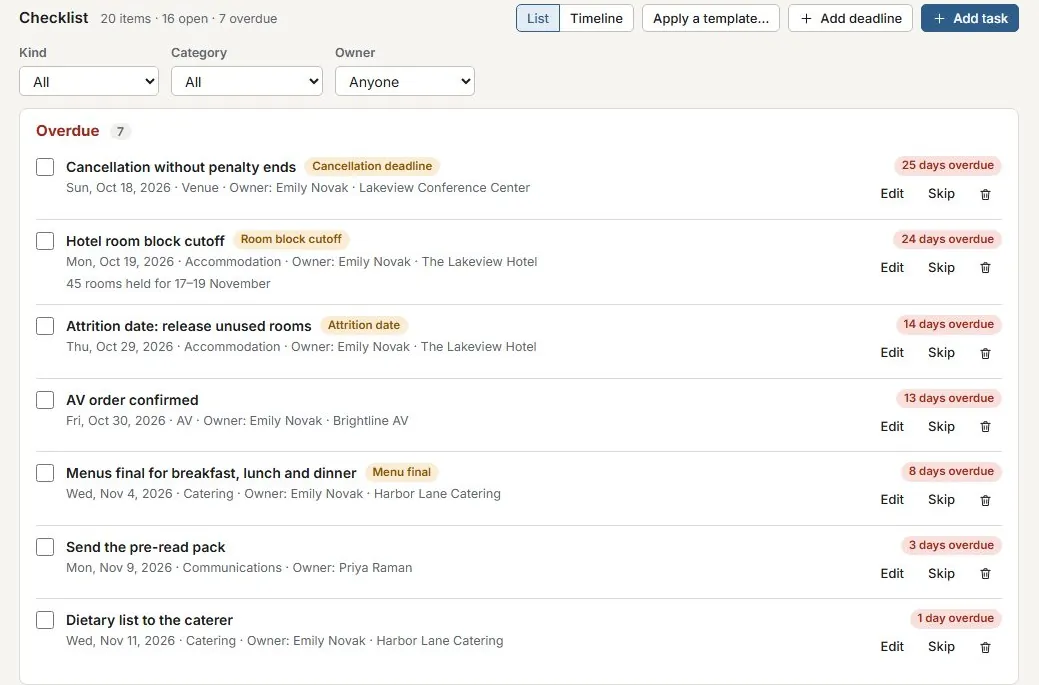
Each meeting has a checklist of tasks and deadlines. A deadline is a contract term: final headcount, menu final, deposit or payment due, cancellation, attrition, room block cutoff or contract signature, with the vendor and the amount where there is one.
- Items are grouped as Overdue, Due this week, Later, Undated and Done, counted from today in the meeting's time zone.
- Apply a template to add a standard list in one step. Each item is set a number of days before the meeting, so a room block cutoff at 30 days lands on the right date.
- The built-in starter for a corporate meeting has 23 items. Owners and Admins can add the organisation's own templates.
- The timeline runs from the first dated item to the meeting day, with today marked and the agenda on the day itself.
Applying a template never changes items already on the list, and skips titles that are there.
Calendar
Every date across every meeting, on one calendar.
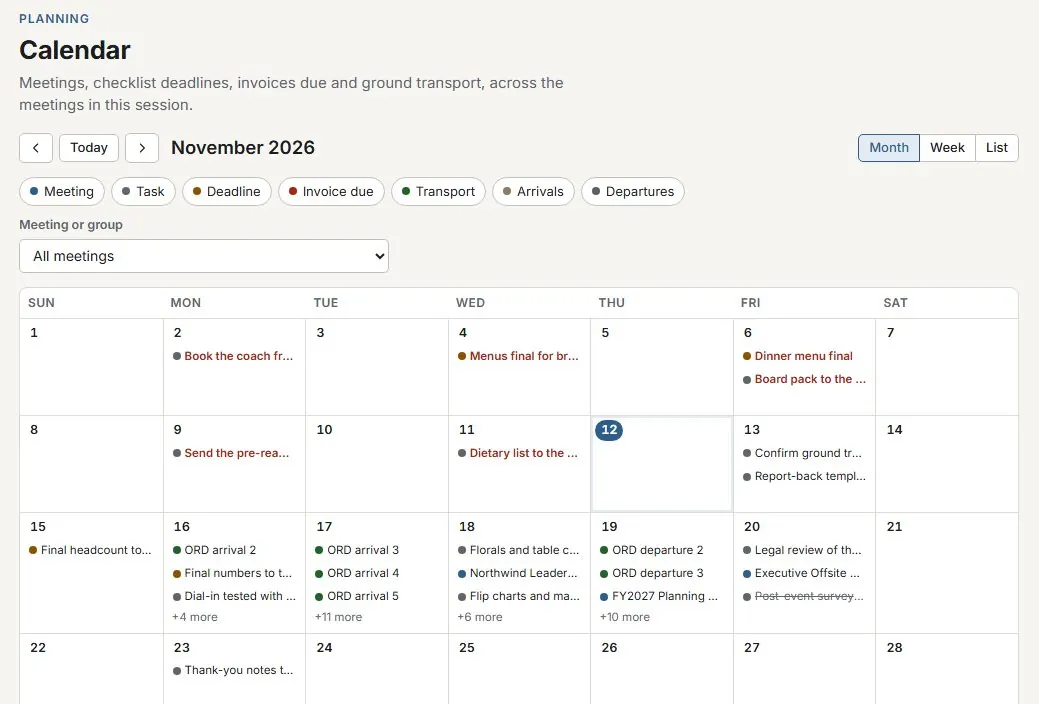
The calendar brings together the meetings themselves, checklist tasks and deadlines, invoices falling due, ground transport runs, and arrival and departure counts. Home shows a small month with the next fourteen days beside each upcoming meeting's readiness.
- Month, week and list views, filtered by kind of entry and by meeting or group.
- Select an entry for its details, then open the meeting tab where it is handled: checklist, budget, travel or details.
- Keyboard navigation throughout: arrows move by day or week, Page Up and Page Down by month, Enter opens the day.
- Invoices appear only for people whose role includes the finance permission, and the page says so when they are left out.
Ground transport
Shuttles and cars, built from the arrivals you recorded.
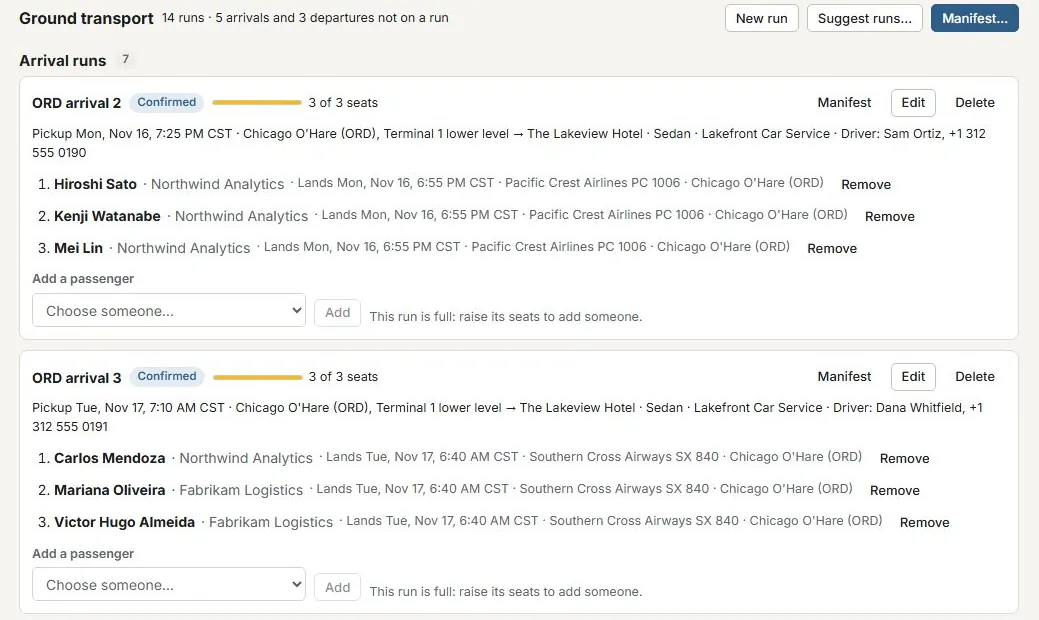
Plan the runs that bring attendees from the airport or station and take them back: each with its direction, status, vehicle, seats, vendor and driver, and its passengers in boarding order.
- Suggest runs groups arrivals by airport or station and a time window you choose, filling vehicles up to their seats. Nothing is saved until you add the runs you want.
- Arrivals and departures not yet on a run are listed, each with a way to put it on one.
- Conflicts are flagged: a flight landing after pickup, a pickup too late for a departure, a run over capacity, or someone on two runs in the same direction.
- A manifest for the transport company as a PDF, Excel workbook or CSV. Phone numbers are left out unless you include them; confirmation numbers and notes never appear.
An attendee's own copy shows only their own shuttle: the run, the pickup time and place, and no driver details.
Budget, invoices & vendors
What each meeting costs, and what is still owed.
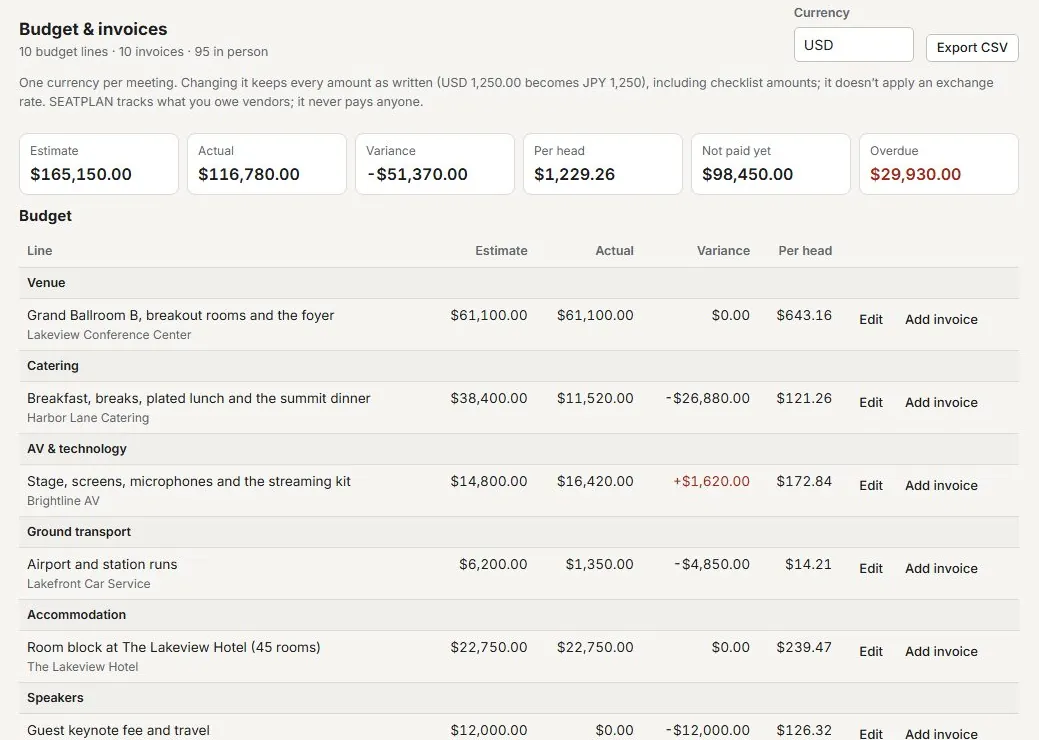
Set a budget by category, record vendors' invoices against it, and see the estimate, the actual, the variance and the cost per attendee in person. Each meeting has one currency.
- Invoices move from Expected to Received, Approved and Paid, or are marked Disputed or Void, with badges for those due soon or overdue.
- The Invoices page lists every invoice across meetings, with totals per currency and overdue invoices first.
- Money is a permission of its own. People without it don't receive the budget or invoices from the server, and their saves leave them unchanged.
- In saved mode, a shared list of vendors keeps each supplier's contacts, encrypted. Email a vendor's stored contacts from SEATPLAN, with replies going to you; it never sends to a typed address.
SEATPLAN tracks what you owe vendors. It never pays anyone.
Attendee forms
Attendees add their own details; you decide what goes in.
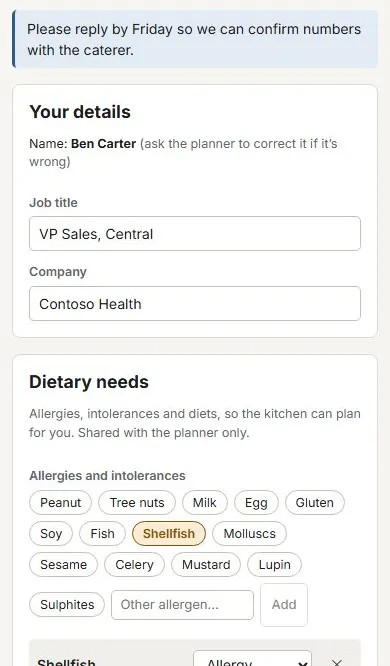
In saved mode, send attendees a link to a short form that works on a phone. They add their title and company, allergies and diet, meal choices, travel in and out with their stay, phone, accessibility needs and a note. They can't change their name or anyone else's details.
- A link works for 72 hours by default, or from 24 hours to 7 days, and sending a new one stops the old.
- The form starts blank, so a forwarded link shows nobody's details. Turn on the email code and the details already on file are shown once the attendee enters the code sent to them.
- Nothing a reply contains changes the meeting by itself. You review each change and tick what to apply; a change that would remove what is on file starts unticked.
- Replies are encrypted, and deleted 30 days after they are applied or dismissed.
Readiness & the day itself
What is still open, and what happened on the day.
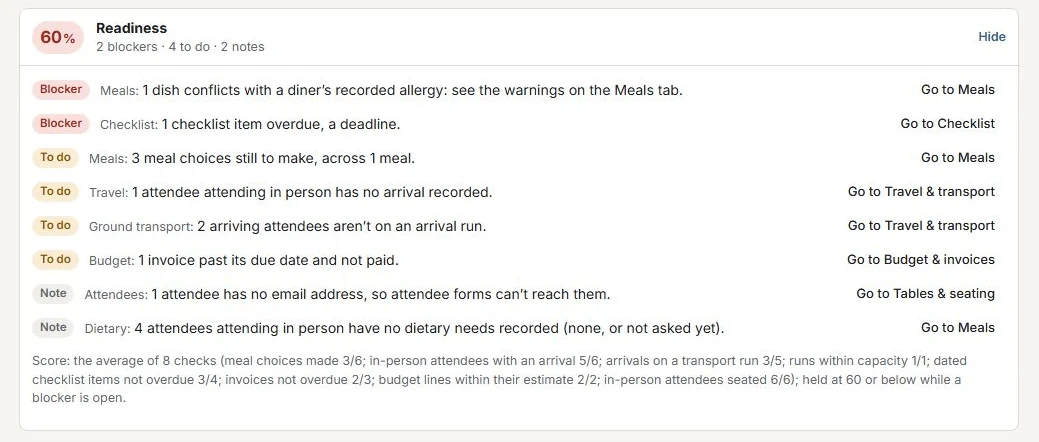
Each meeting carries a readiness score and the list behind it: blockers, things to do and notes, each with a link to the tab that fixes it. Home shows the next five meetings within 30 days, each with its score.
- Checks cover meal choices, dietary needs, arrivals and transport runs, unseated attendees, overdue checklist items and deadlines, overdue invoices and budget overruns, and forms still to come back.
- A chosen dish that contains one of the diner's allergens is a blocker, and the Meals tab shows the conflict for each meal.
- The day-of log records what went wrong, when, and how it was resolved, with a category, severity, owner and vendor. Its entries are encrypted in saved mode.
- Report a problem, in the top bar, sends what you typed, the page and the app version, and nothing from your meetings.
Controlled distribution
Know which copy went to whom.
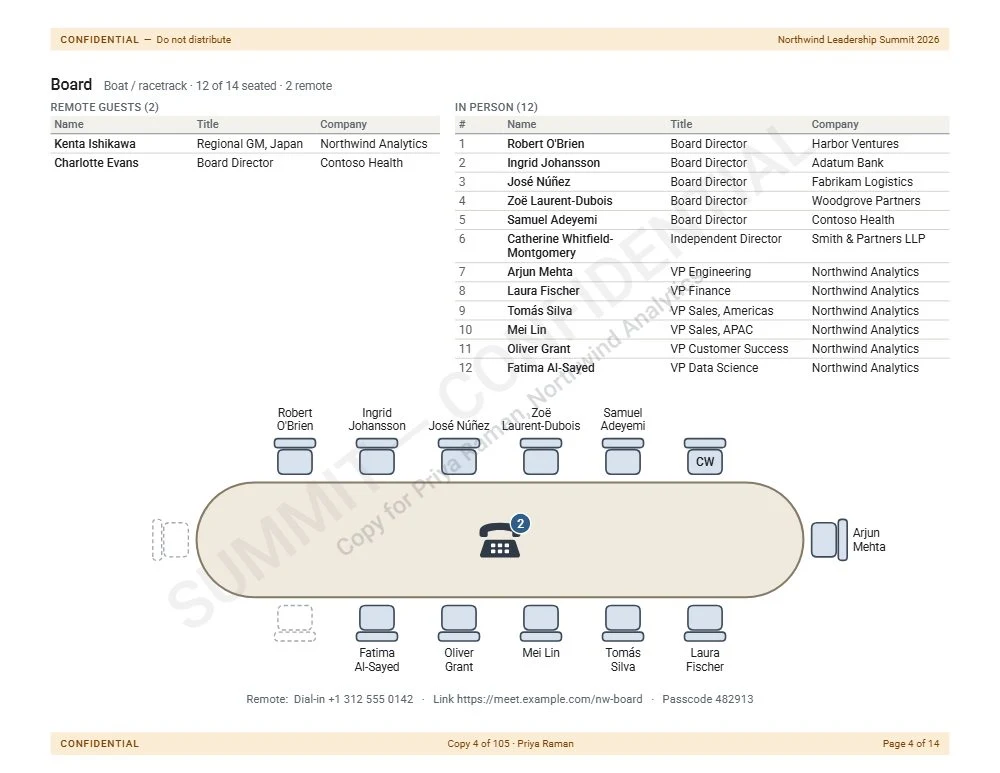
Any export can be a print run: one copy per attendee, a group copy with a distribution code, or a copy carrying your own message. The watermark is drawn over the page, so nothing on it can cover the mark.
- Per-recipient copies read Copy for the recipient's name and company under the watermark, and Copy 4 of 105 in every footer.
- Distribution codes such as DST-7F3K-29QX identify a group copy.
- AES-256 passphrases on every PDF in the export, with editing and text copying restricted. Printing stays available.
- Passphrases and distribution codes are never stored, and never written to the workbook.
A watermark is a deterrent and a trace, not a lock: it shows where a copy came from. Add a passphrase when a copy must not be opened by the wrong person.
Plan books
A week of meetings, in one bound document.
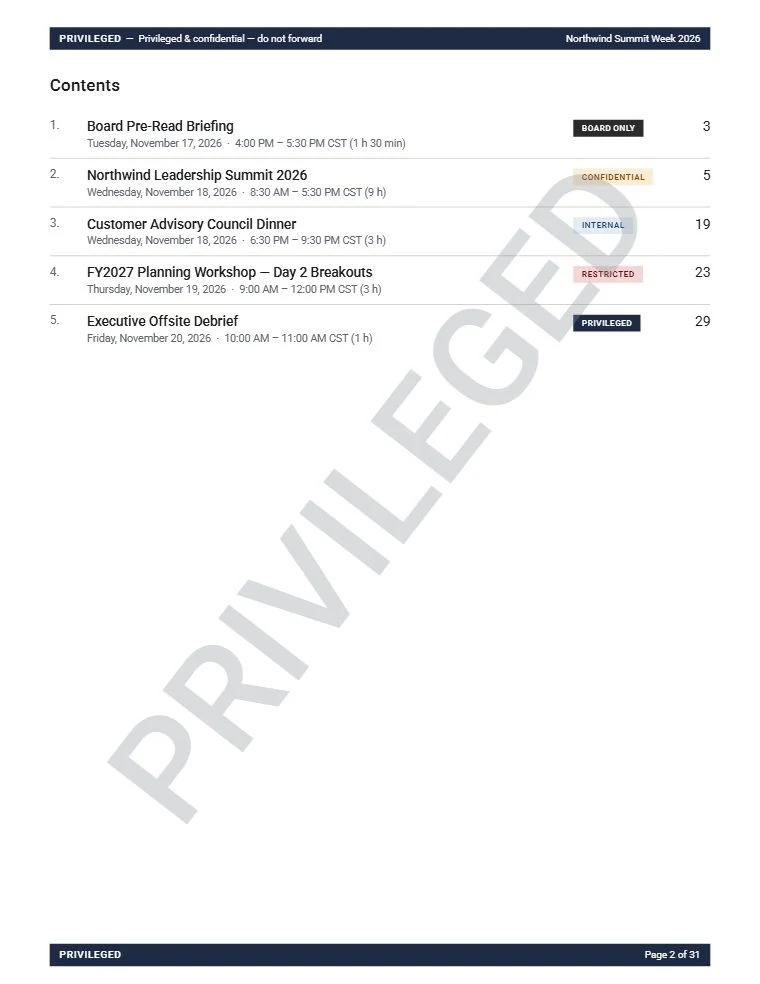
Combine several meetings into a single PDF with a cover, a linked table of contents and each meeting in order, so a summit or board week travels as one book.
- The cover carries the highest sensitivity in the book, and each meeting keeps its own banner.
- Each meeting keeps its own page orientation inside the book.
- A per-attendee print run gives every recipient a stamped copy of the whole book.
- The individual meeting PDFs can be zipped alongside the book.
Groups
Keep the meetings that belong together in one place.
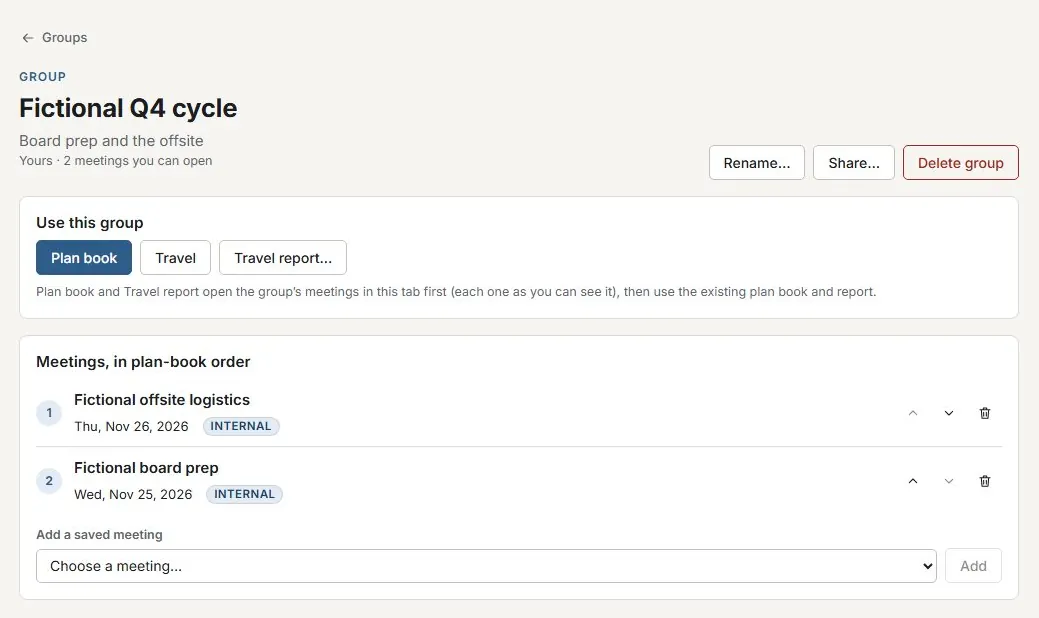
In saved mode, a group collects saved meetings, such as a board cycle or an offsite programme, in the order they happen. From the group page you can produce its plan book, open its travel board or run its travel report.
- Up to 200 meetings in a group, in the order you set. The plan book follows that order.
- Share a group with named people as view or edit, the same way as a meeting.
- Sharing a group doesn't share its meetings. Members see only the meetings already shared with them.
- Deleting a group never deletes its meetings.
Governance
Built for the people who answer for the data.
Saved meetings sit behind invite-only accounts, roles and a data policy that your administrators set for each sensitivity level. Work that should never be stored can stay in the browser tab.
Invite-only accounts
No public sign-up and no default accounts. People sign in with a passkey, or a password and an authenticator app, or the Google or Microsoft account they were invited with; Owners and Admins must use multi-factor authentication.
Six roles
Owner, Admin, Planner, Contributor, Viewer and Auditor. Each sees only the parts of the workspace its role can use, and Auditors read the audit log without seeing any meeting content.
Per-meeting sharing
Share a saved meeting or a group with named people as Can view or Can edit. Viewers read and print; they cannot change it, download its workbook or see its internal notes.
Policy per sensitivity
Keep whole sensitivity levels ephemeral, so they are never saved, or require a watermark or a passphrase on every PDF they produce.
Retention and legal hold
Delete saved meetings a set number of days after their date. A meeting on legal hold is never deleted until the hold is lifted.
Audit log and history
A hash-chained, append-only log records sign-ins, sharing, policy changes, exports and print runs, never meeting content. Earlier versions can be restored.
Access by role
Each role sees what it can use, and the server checks it.
The menu shows an item only to the roles that hold its permission. The server enforces every route on its own, so a hidden menu item is never the only control. A signed-in person who opens a page their role doesn't allow is told so.
- Contributors edit only their own private profiles; Planners and above edit shared ones. Only a profile's owner can share it to the directory or make it private again.
- An Owner or Admin can read another person's private profile, but not edit it. That read, like previewing a meeting nobody shared with them, is recorded in the audit log.
- Internal notes reach only people who can edit the meeting. The server never sends them to view-only users.
- Importing and exporting profiles are permissions in the roles matrix, on by default for Owners, Admins and Planners. The server checks export on every page it returns.
- The budget and invoices need the finance permission (Owner, Admin and Planner by default), and sending attendee forms needs its own permission (Contributor and up by default). The Owner can change both, and the server enforces them.
- EveryoneHome, New meeting, Import, Meetings, Session, Calendar, Travel and Help, in either mode, and Report a problem
- Owner, AdminAlso Groups, People, Vendors, Invoices, User management, Settings, Issue reports and the Audit log
- PlannerAlso Groups, People, Vendors and Invoices
- ContributorAlso Groups, People and Vendors (read only)
- ViewerAlso Groups
- AuditorAlso User management, read only, and the Audit log. No meeting content
Security
Controls you can verify.
Protection is enforced where it holds: in the database, in the key hierarchy and at the network boundary. It is tested on every change.
Row-level security
Postgres decides who can read each meeting, group, directory profile, vendor and attendee-form reply, with forced row-level security. The service connects as a role that cannot bypass it and refuses to start if it could. An isolation suite runs on every change, with a negative control that proves it is not passing by accident.
Envelope encryption
Each saved meeting, directory profile and vendor has its own AES-256-GCM data key, sealed under the installation's key. Attendee emails, notes, dietary details, travel, drivers' details, dial-in details, attendee-form replies, day-of log entries and the version history are stored encrypted, as are vendor contacts and issue reports.
Egress allowlist
The service calls out only through one gate with an exact-origin allowlist: our email processor for contact mail, invitations, attendee forms, vendor email and issue notifications, Cloudflare's bot check, Google's sign-in endpoints when Google sign-in is on, and Microsoft's sign-in and Graph endpoints when Microsoft 365 is connected. HTTPS only, no redirects, and the server's firewall drops anything else.
Security gates in CI
Every change passes secret scanning, static analysis with SEATPLAN-specific rules, dependency and configuration scanning, workflow linting and the isolation suite before it can merge.
Nothing retained unless you save it
In a session-only meeting the browser does the work: importing, editing and PDF generation happen in memory, and its content is never written to browser storage or sent to the server. The server hears only that a file was imported or exported, and how many meetings, for the audit log. A meeting is stored only when someone chooses to save it, and only where the policy allows.
Read the security summary · Reporting a vulnerability: security.txt
Access
Access is by invitation.
There is no public sign-up. An administrator creates each account and sends an invitation to a named email address. Invitations expire and can be used once.
To discuss access for your organisation, write to us at the address shown here.
Already invited?
Sign in with your passkey, or your password and authenticator code, or with Google. Where your organisation has connected Microsoft 365, you can use your work account.
Sign inContact
Access and general enquiries
contact@